 IM Residency Tracker
Put it on your Home Screen.
There is nothing to download from the App Store. Open the site in Safari, add it to your Home Screen, and from then on it opens full screen with its own icon, like any other app.
Six taps. The screenshots below are from an iPhone on iOS 26. Older versions of iOS put the same buttons in slightly different places; the words are the same.
The steps
-
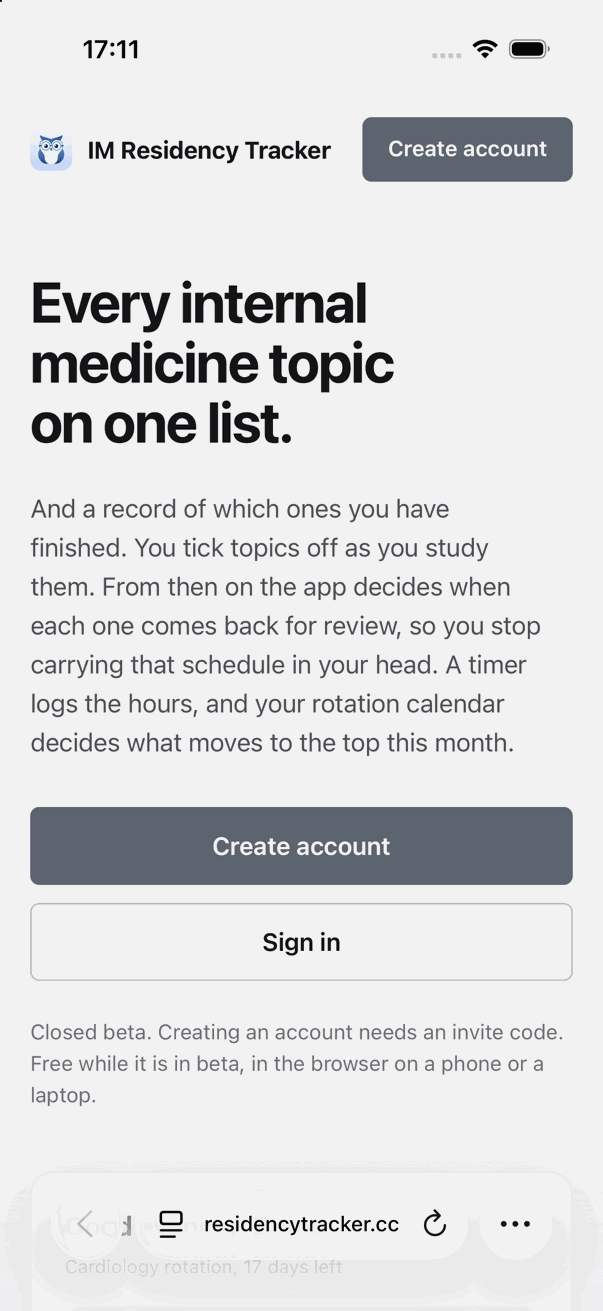
Open the site in Safari
Go to residencytracker.cc in Safari, not Chrome. Then tap the … button at the bottom right.
-
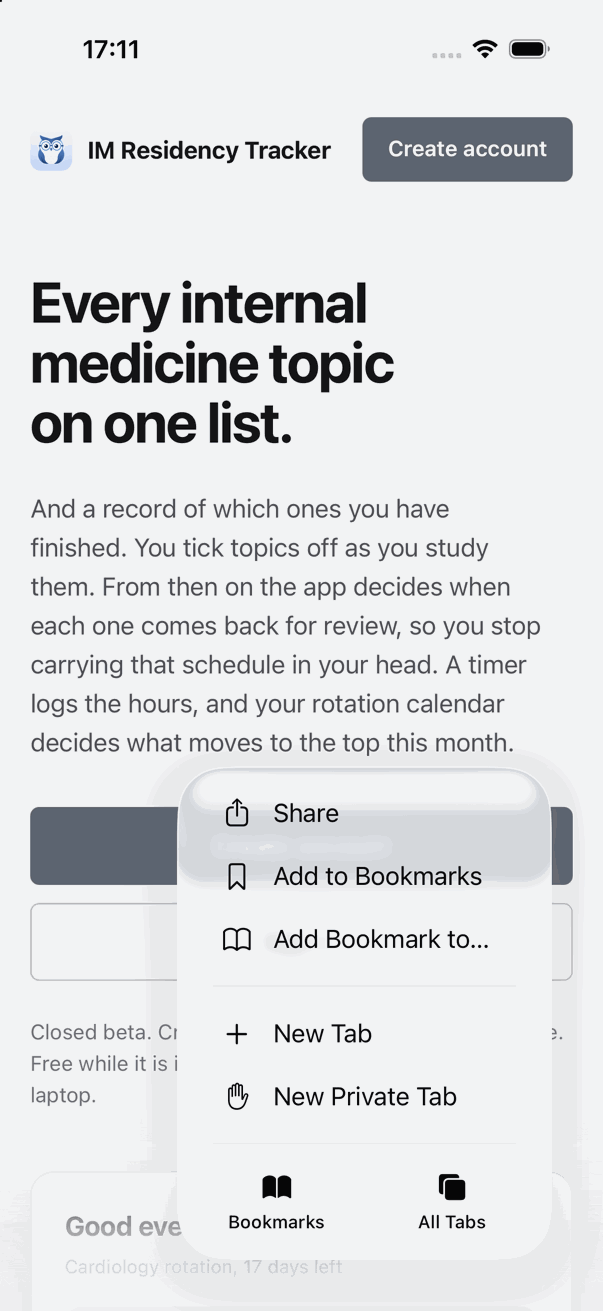
Tap Share
It is the first item in the menu that opens.
-
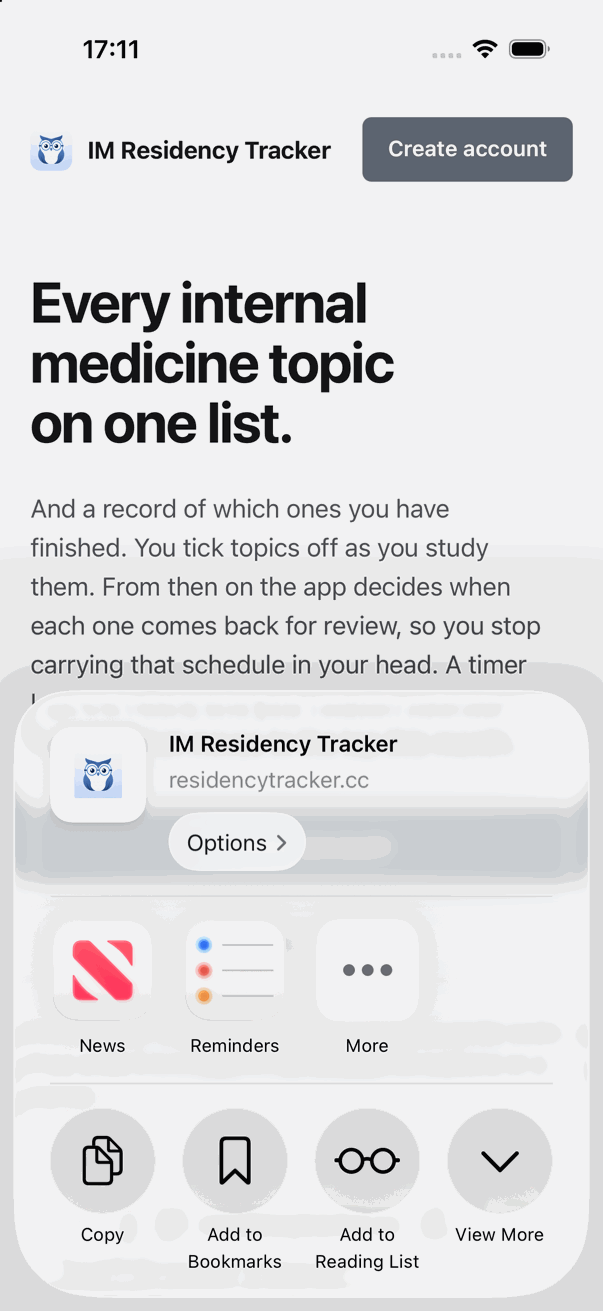
Tap View More
The share sheet shows a short row of actions. The one you need is hidden under View More.
-
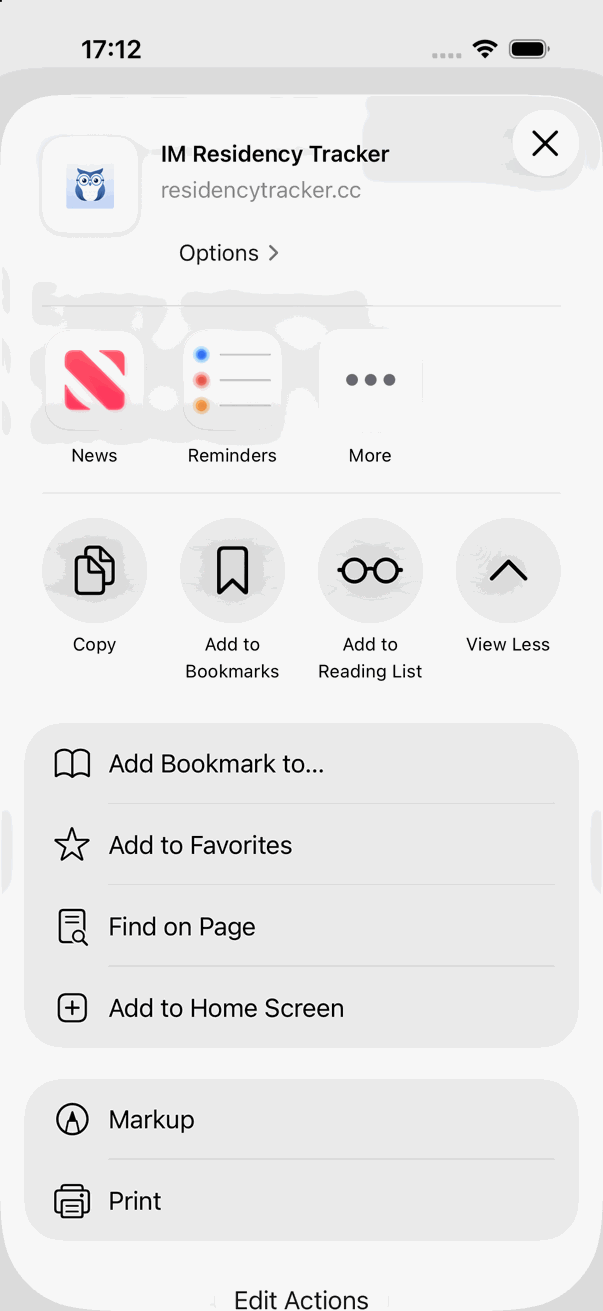
Tap Add to Home Screen
It is in the list that unfolds, just under Find on Page.
-
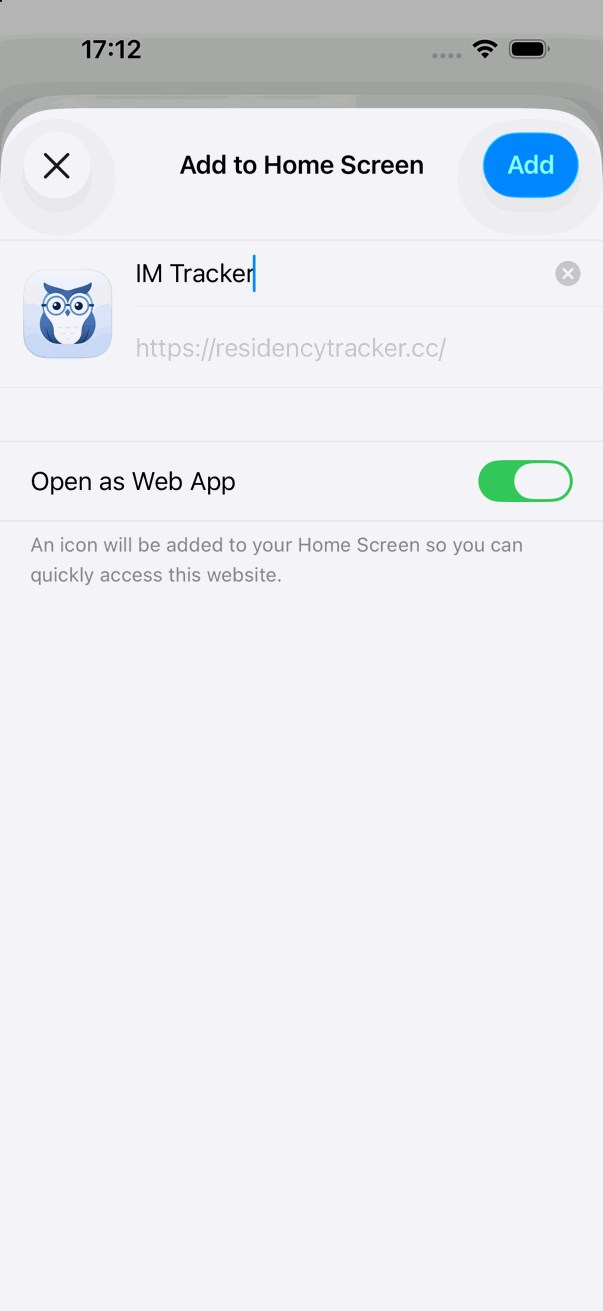
Tap Add
Leave Open as Web App switched on. That is what makes it open full screen instead of inside Safari.
-
Done
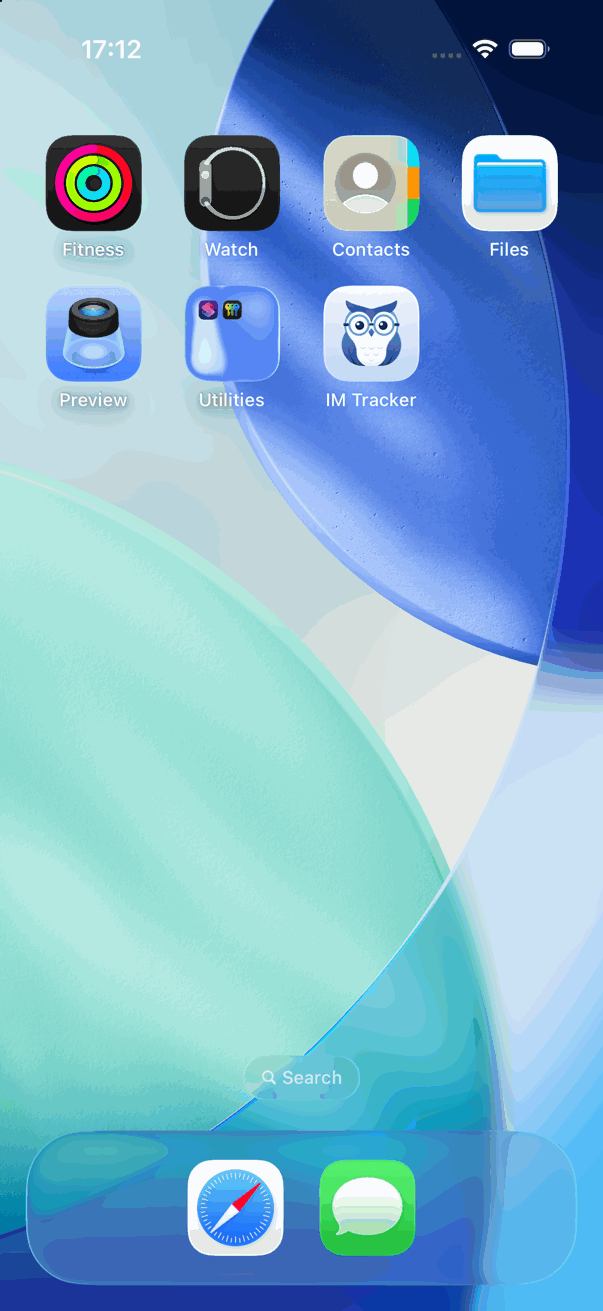
The owl is on your Home Screen. Move it wherever you like, and open the app from there from now on.
What changes once it is on the Home Screen
It opens full screen. No address bar, no Safari buttons, and the tab bar sits at the bottom where your thumb is.
You stay signed in. Sign in once inside the installed app and it remembers you, the same as the browser does.
It is the same app. Nothing is copied to your phone. Every tick, timer and review is saved to your account, so the laptop shows the same thing.
Updates arrive on their own. There is no version to install. Open it and you have the newest one.
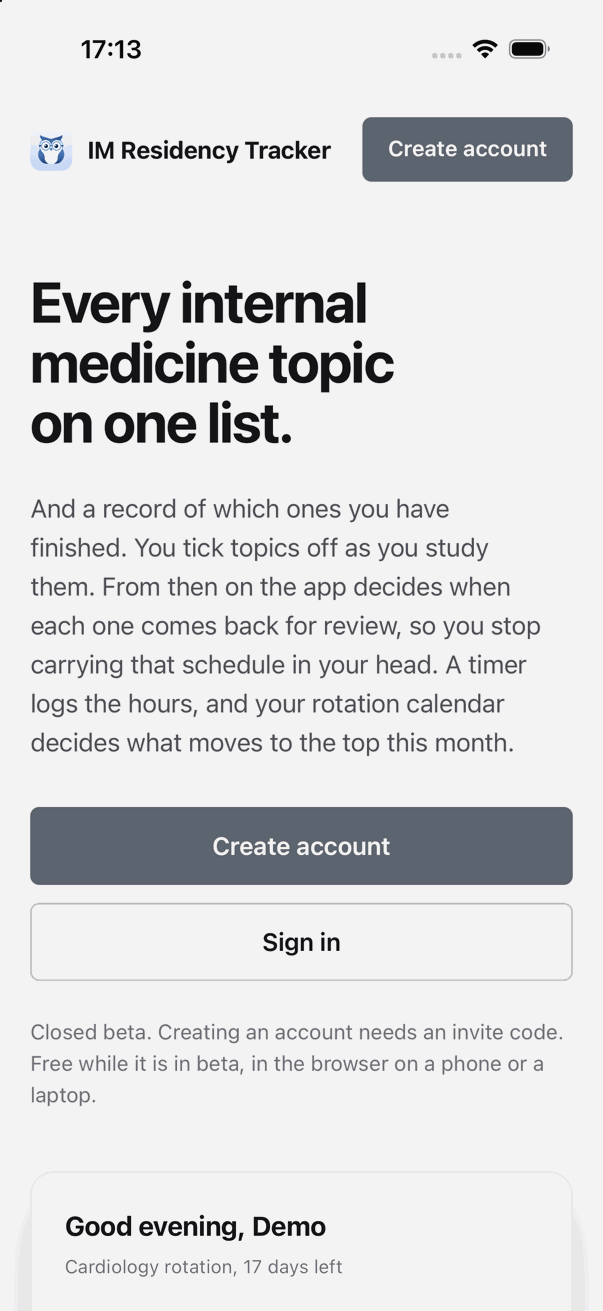
Opened from the icon: the whole screen is the app.
Common questions
- I do not see Add to Home Screen
- Make sure you are in Safari. Chrome and other browsers on iPhone hide this option or put it somewhere else. If you are in Safari, tap View More in step 3; the item is in the longer list, not the short row.
- Can I do this on an iPad?
- Yes. The share button on iPad is the square with an arrow at the top of Safari, and the rest is the same.
- And on Android?
- Open the site in Chrome, tap the three dots at the top right, then Add to Home screen or Install app. It behaves the same way.
- How do I remove it?
- Press and hold the icon and choose Delete Bookmark. Your account and everything in it stay exactly as they were. You can add it again any time.
No account yet?
Create one first, then come back here on your phone and follow the steps.